Square shape check
Confirm whether the uploaded source is exactly square before you export favicon and app icon files.
Free Favicon & App Icon Checker
Upload a logo, favicon, app icon or PWA icon and review the details that often break launch polish: square shape, pixel size, file format, transparency, file size and whether the image can supply 16 x 16, 32 x 32, 48 x 48, 180 x 180, 192 x 192 and 512 x 512 outputs.
Browser-side icon check
Use this checker before you wire up favicon links, Apple touch icons, a web app manifest or Android listing artwork. The tool reads dimensions, format, file size and transparency locally, then shows practical fit checks.
Your icon file stays in this browser tab. This checker does not upload the image to read dimensions or preview backgrounds.
Icon results will appear here
Upload a logo, favicon, app icon or PWA icon to see square status, size coverage, platform fit, transparency and preview modes.
The checker turns one uploaded image into a practical readiness report for website icons, PWA manifests and app icon source material.
Start with a logo, favicon, app icon or PWA icon. The checker reads dimensions, file type, file size and transparency without sending the image away from the browser.
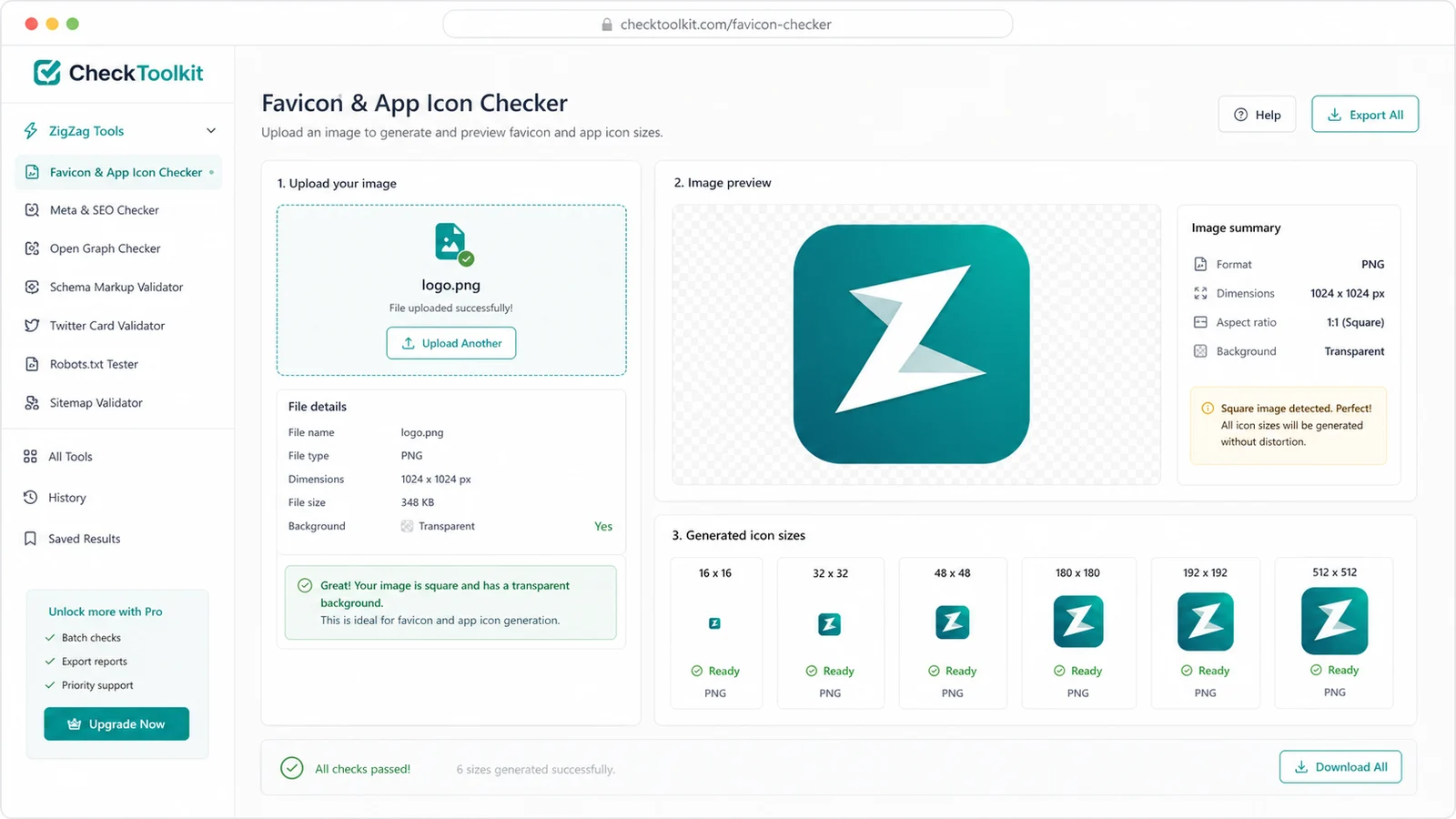
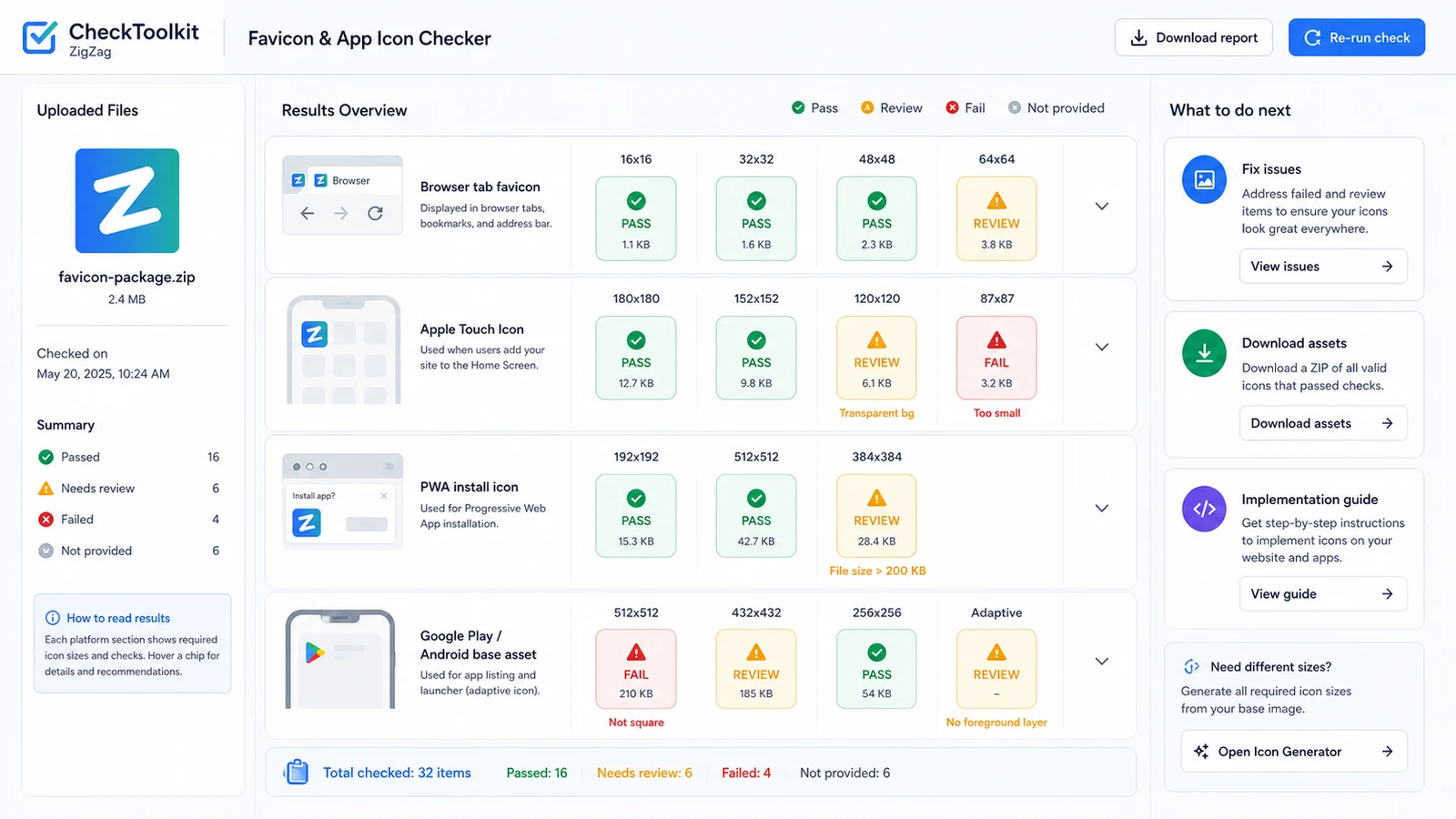
The results flag whether the source can cover common favicon, Apple touch, PWA and Android base-material sizes before you export multiple files.
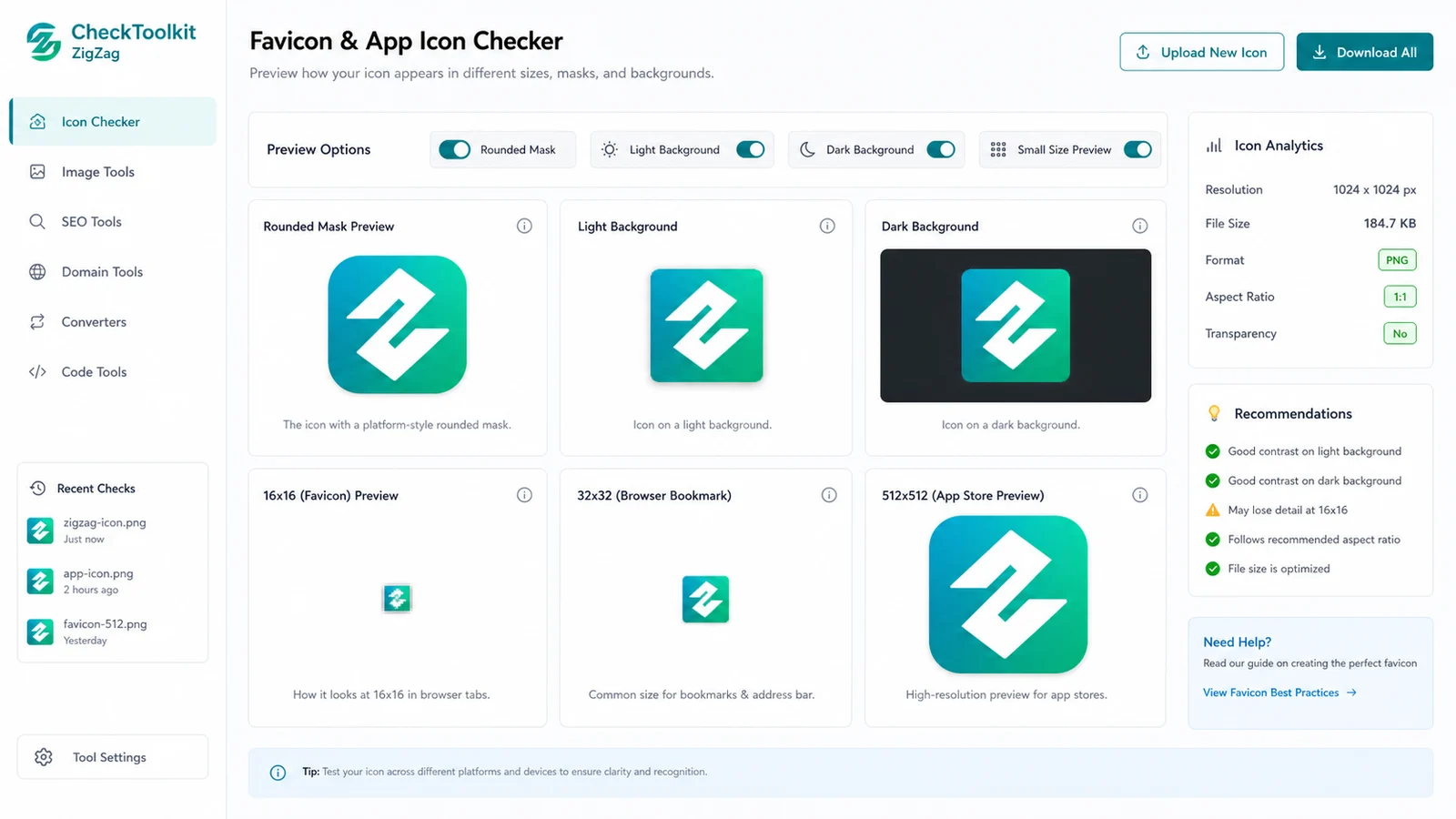
Use the preview modes to catch transparent edges, weak contrast, rounded-mask cropping and small-size blur before users see the icon in a tab or launcher.
Use this tool when a logo looks good at full size but may fail as a tiny browser icon, touch icon, PWA icon or app-store source asset.
Confirm whether the uploaded source is exactly square before you export favicon and app icon files.
See whether the source can cover 16, 32, 48, 180, 192 and 512 pixel square outputs.
Check the decoded file format and file size before choosing PNG, ICO, SVG, WebP or JPG exports.
Estimate transparent pixels so you can spot edges and background assumptions before platform processing.
Review browser favicon, Apple touch icon, PWA icon and Android base-material readiness in one place.
Inspect rounded masks, dark backgrounds, light backgrounds and small-size blur before publishing.
This is a preflight tool for common public requirements, not an official approval guarantee.
Start with the largest square logo or app icon source you have. A 512 x 512 or larger square source gives the checker enough pixels to judge most common outputs.
Check whether the image can cover favicon sizes, a 180 x 180 Apple touch icon, 192 and 512 pixel PWA icons, and a 512 x 512 Android or Google Play base asset.
A pass means the image meets this checker logic. Final acceptance still depends on the platform, manifest, store listing and design review.
Read resultsUse the rounded, dark, light and tiny previews to catch soft edges, transparent backgrounds, poor contrast and details that disappear at favicon sizes.
If a 16 x 16 preview turns muddy, simplify the shape or export a purpose-built favicon instead of only resizing the full app icon.
Preview iconAnswers about accuracy, privacy, accepted files, public icon requirements and what to do when a result needs review.
It reads browser-decoded image dimensions, square shape, file format, file size and an estimated transparency ratio. It then checks whether the source can cover common favicon, Apple touch, PWA and Android icon sizes.
No. This is a preflight check against common public requirements and practical preview issues. Store approval, browser behavior and platform processing can still depend on official rules and the exact files you export.
You can upload PNG, JPG, WebP, SVG and ICO files when your browser can decode them. PNG is usually the safest source for app icon export because it preserves sharp pixels and can be prepared for platform-specific transparency rules.
No. The checker reads the image in your browser tab and uses a local object URL for previews. It does not upload the icon file for checking.
Transparency is useful for browser favicons, but touch icons and app-store assets can be processed onto different backgrounds or masks. The warning asks you to preview contrast and export platform-specific files intentionally.
Go back to the original logo or vector artwork and export a larger square source, ideally 512 x 512 or larger. Upscaling a small favicon can pass pixel counts but still look blurry in the previews.
Use it when you are preparing a site launch, PWA manifest, home-screen icon or Android listing source.
Check the source once, export the right square sizes, then test the final files in the real platform workflow.
Free Favicon & App Icon Checker for square size, format, transparency, file size and preview checks.